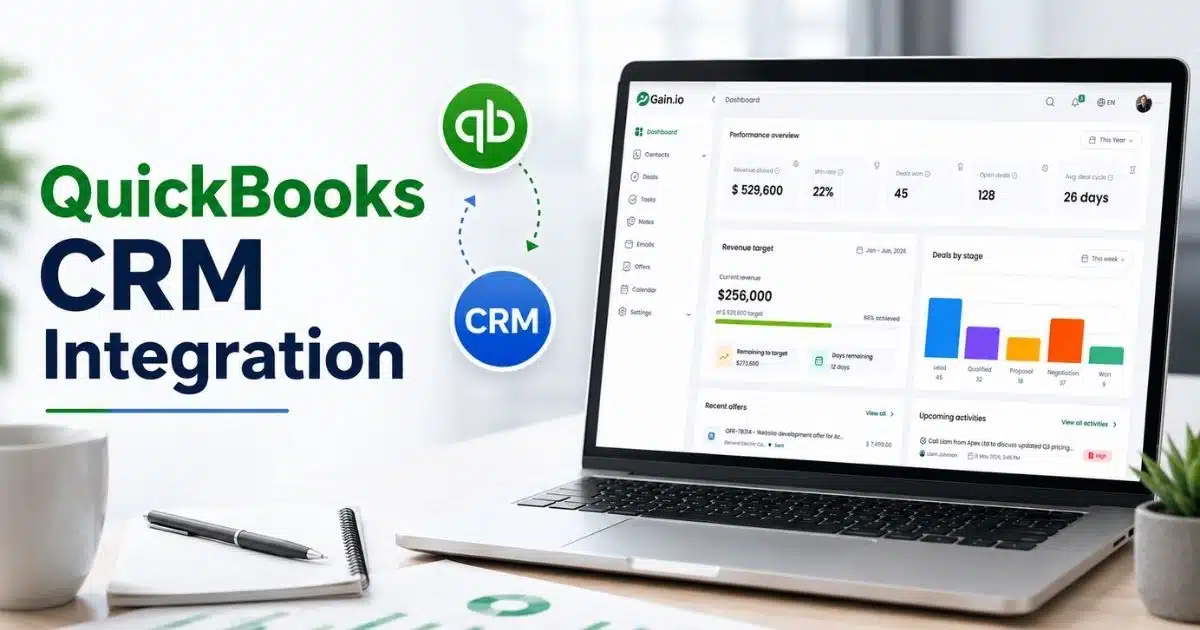
QuickBooks handles your books. Your CRM handles your pipeline. Connecting them stops the constant copy-paste between two systems and gets your sales and finance teams looking at the same numbers at the same time. A QuickBooks CRM integration syncs contacts, invoices, and payment data automatically, so a rep can check whether an invoice is still open without switching tabs, and your accounting team never chases a deal that already closed.
Some integrations sync in real time. Others run on a schedule, and a few lean on middleware like Zapier to bridge the gap. This guide covers what actually syncs, which integration type fits your setup, and how to get one running without breaking workflows you already rely on.
What Is QuickBooks CRM Integration
QuickBooks CRM integration connects your accounting software with your customer relationship management platform, letting contact records, invoices, and payment data move between both systems automatically. Instead of updating QuickBooks Online and your CRM separately, the two stay synced, so sales reps see billing status and finance teams see deal history without switching tools.
Most quickbooks integration setups run through a native connector, a middleware tool like Zapier, or a purpose-built quickbooks crm software designed specifically to bridge the two. Each option syncs data differently, but the goal stays the same: one accurate customer record instead of two conflicting ones.
Does QuickBooks Have A Built-In CRM
QuickBooks does not include a true customer management system. It tracks invoices, expenses, and financial data well, but it was never built to manage leads, deals, or sales conversations.
Businesses connect a quickbooks account to a separate CRM for exactly this reason, instead of trying to force QuickBooks into a role it wasn't designed for. Method CRM, for example, was built specifically to fill that gap, offering deep crm quickbooks integration for teams that want sales tracking layered directly on top of their existing accounting setup.
Why Connect QuickBooks With Your CRM

Connecting QuickBooks to your CRM software closes the gap between sales and accounting. Once CRM with QuickBooks is live, teams stop chasing spreadsheets and work from the same numbers, in real time, across every deal.
Eliminate Duplicate Data Entry
Manually copying QuickBooks data into a CRM invites typos and missed updates. A contact added in one system often never makes it to the other, leaving reps working from stale records while accounting sees a different picture entirely.
Automated sync closes that gap. Modern CRM software for sales teams that pulls directly from QuickBooks updates both sides the moment something changes, so nobody re-types a contact, an invoice, or a payment status twice, even during busy sales weeks.
Speed Up Invoicing From Deals
Closing a deal and then waiting for someone to draft an invoice adds a delay buyers notice. Every extra step between a signed deal and a sent invoice gives a customer more time to reconsider or forget.
A connected sales process removes that lag. Once a deal closes in the CRM, the invoice generates in QuickBooks automatically, pulling the right contact and pricing details without anyone opening a second app.
Improve Cash Flow Visibility
Sales reps rarely check accounting software before following up with a client. Without visibility into payment status, a rep might push for a new deal while a client is already behind on an existing invoice from last quarter.
Syncing payment data gives reps that context automatically. A quick glance at the CRM shows which QuickBooks customers have open balances, so follow-ups reflect the full relationship instead of just the pipeline stage and tie directly into how CRM helps sales teams manage leads.
Align Sales And Finance Teams
Silos form fast when sales and accounting teams work from separate systems and separate assumptions. Effective sales team collaboration techniques become harder to apply when a rep celebrates a closed deal while finance is still waiting on payment confirmation, and neither side has visibility into what the other sees in real time.
A shared CRM platform closes that distance. Deal status, invoice status, and payment history sit in one place, so both teams work from the same facts instead of chasing updates across departments, just like a purpose-built sales collaboration CRM is designed to support.
Build Complete Customer Records
Contact details scattered across QuickBooks, a CRM, and maybe a marketing automation tool rarely tell the same story. A support rep might see one email address while billing has a completely different one on file, which is exactly what dynamic contact management for smarter relationship tracking is meant to prevent.
Integration pulls all of that into a single record. Centralized contact management connects contacts, deals, invoices, and campaign activity to the same profile, giving every team a complete view of customer relationships instead of fragments spread across tools.
What Data Should Sync Between QuickBooks And Your CRM

Not every field needs to move between systems, but a few categories matter more than the rest. Getting these right avoids manual data entry and keeps both your CRM and QuickBooks working from the same source of truth.
Customer And Contact Records
Names, emails, phone numbers, and billing addresses form the foundation of any integration with QuickBooks. When these fields sync automatically, a contact created in the CRM shows up in QuickBooks without anyone re-typing a single detail.
This matters most for teams juggling dozens of active accounts. Manual data entry across two systems almost guarantees a mismatch eventually, whether it's an old address or a name spelled two different ways.
Estimates And Sales Orders
Estimates created early in a deal often live only in the CRM, disconnected from the sales pipeline once a prospect moves closer to closing. That gap creates confusion about what was actually quoted.
Syncing estimates keeps pricing consistent from first quote to final invoice. A pipeline CRM that shares this data with QuickBooks and includes smart CRM features to organize sales means nobody has to guess what number a rep promised weeks earlier.
Invoices And Payments
Invoice status is the piece sales reps check least, even though it matters most. Without it, a rep might follow up on a deal that's already been paid, or miss a client who's fallen behind.
CRM integration with QuickBooks pulls payment status directly into the contact or deal record. Reps see who's paid, who's overdue, and who still owes a balance, all without opening a separate accounting tab.
Products And Line Items
Product catalogs rarely stay identical across two systems unless something forces them to. Pricing updates in QuickBooks can quietly fall out of sync with what a CRM still shows sales teams.
Workflow automation solves this by pushing product and pricing changes both directions. A line item added in QuickBooks reflects immediately in the CRM, keeping quotes and invoices consistent.
Revenue And Transaction History
Full transaction history gives context that a single invoice never can. Customer interaction tracking in CRM plus knowing what a customer has spent over time changes how a rep approaches renewal or upsell conversations.
Platforms like Zoho CRM built dedicated financial modules around exactly this need. Sales automation tools that pull historical revenue data help teams prioritize accounts based on real spending patterns, not gut feel.
How To Set Up A QuickBooks CRM Integration

Setting up a QuickBooks CRM integration takes more than flipping a switch. A handful of steps determine whether the sync actually helps quickbooks users or just adds another system to manage.
Define Your Integration Goals
Start by deciding what you actually want synced. Some setups only need contacts and invoices moving between systems, while others aim for something broader, like managing customer relationships across sales, support, and billing at once, which should be part of a broader CRM implementation plan.
Clear goals keep the setup focused instead of syncing every available field. Write down the two or three outcomes that matter most before choosing a tool, so the integration serves an actual purpose rather than adding complexity nobody asked for.
Clean Your Customer Data
Duplicate contacts and outdated customer information cause most sync problems before they even start. Two records for the same client, one with an old email and one current, confuse the sync and leave both systems guessing which version is correct.
Merge duplicates and standardize formatting in both systems before connecting anything. A clean starting point gives the integration accurate data to work with, rather than carrying old mistakes forward into every report and follow-up going forward.
Choose The Integration Method
Native connectors, middleware tools, and dedicated apps from the QuickBooks App Store all handle syncing differently. QuickBooks Enterprise and the QuickBooks Desktop version often need separate tools than QuickBooks Online, so checking compatibility early saves a wasted setup.
Reliable crm solutions usually list which QuickBooks version they support directly on their integration page. Confirming this before signing up avoids discovering, weeks into onboarding, that the connection everyone was counting on simply doesn't exist yet.
Connect QuickBooks And Your CRM
Authenticate both accounts and grant the permissions the integration asks for. Most platforms walk you through this step with a guided setup, prompting for login credentials and access scopes before the two systems can start talking to each other.
Enterprise-level connections sometimes need an admin on both ends to approve access. Getting this right the first time helps streamline operations from day one, instead of troubleshooting permission errors after data has already started moving between systems.
Map Fields And Test The Sync
Match fields carefully so contact and invoice data lands exactly where it should on both sides. A mismatched field, like a phone number syncing into a notes column, confuses that's easy to avoid with careful setup.
Run a small test batch before rolling anything out fully. Try to create invoices from a handful of sample deals and confirm the numbers, contacts, and line items all land correctly before trusting the sync with real customer accounts.
Monitor Sync Errors Regularly
Integrations drift over time as field names, pricing structures, or workflows shift on either side. A sync that worked perfectly at launch can quietly start dropping records months later without anyone noticing until customer interactions start looking incomplete.
Set a regular schedule to review error logs and spot-check a handful of recent records. Catching problems early with disciplined sales activity tracking keeps both systems trustworthy long after launch, instead of discovering weeks of bad or missing data all at once.
QuickBooks CRM Workflows To Automate

Automation is where a QuickBooks CRM integration actually pays off day to day. These five workflows cover the moments where manual work slows teams down most and errors tend to creep in, and they line up closely with broader sales workflow automation strategies.
Lead-To-Customer Record Creation
A new lead usually sits in the CRM alone until someone remembers to add them to QuickBooks. That gap creates delays and, occasionally, a lead who gets invoiced under the wrong name entirely.
Automating this step creates the QuickBooks record the moment a lead converts. The best crm setups handle this without anyone touching a keyboard, keeping both systems aligned from the very first interaction and tightly integrated with contact management built for stronger relationships.
Deal-To-Invoice Automation
Closing a deal and manually drafting an invoice afterward adds a delay that customers notice. That lag between commitment and paperwork can quietly chip away at customer satisfaction, even when the sale itself went smoothly.
Automation removes the wait entirely. Once a deal closes, the invoice generates automatically, pulling pricing and contact details straight from the CRM without a rep opening QuickBooks at all.
Payment Status Sync
Sales reps rarely check accounting processes before reaching out to a client. Without visibility into what's been paid, a rep might push a renewal conversation while an old invoice sits untouched, especially if CRM email sync and other context signals aren’t in place.
Syncing payment history into the CRM fixes this automatically. Reps see who's paid and who hasn't right inside their usual workflow, since the CRM pulls that data from QuickBooks natively instead of requiring a separate login, which supports a broader customer engagement CRM strategy.
Overdue Payment Follow-Ups
Chasing overdue invoices manually means someone has to remember, track, and follow up consistently. That rarely happens at scale, and overdue balances slip through the cracks more often than anyone wants to admit.
Automated reminders solve this by triggering follow-ups the moment an invoice crosses its due date. CRM email integration helps here as well, and team collaboration improves too, since both sales and finance see the same overdue list instead of working from separate spreadsheets.
Recurring Billing Reminders
Subscription and retainer clients need consistent, on-time billing to stay predictable. Missing a recurring invoice, even once, creates confusion for the client and extra cleanup work for whoever manages the account afterward.
Automating recurring billing reminders keeps this consistent without manual tracking. Invoices go out on schedule every time, giving both the client and your team one less thing to monitor manually.
How To Choose The Right CRM For QuickBooks

Picking the right CRM for QuickBooks comes down to a handful of specific factors, not just brand recognition. Working through each one first prevents a mismatched setup down the line.
QuickBooks Version Compatibility
Not every integration supports QuickBooks Online, QuickBooks Desktop, and QuickBooks Enterprise equally. A tool built primarily for one version can offer a limited or clunky connection to the others, so choosing the right CRM software for modern sales teams matters here.
Confirm compatibility with your exact version before signing up for anything. This single check avoids the common surprise of discovering, after setup, that your dedicated crm like Gain.io only half-supports the QuickBooks version your team actually runs.
Native Support Vs Middleware
Native integrations connect directly and tend to sync faster, with fewer moving parts to troubleshoot. Middleware tools like Zapier bridge the gap instead, which works fine but adds another layer between the two systems.
Neither option is automatically better, but they fit different needs. Teams with straightforward sales workflows often do fine with middleware, while teams needing tighter, faster sync usually lean toward native support.
Two-Way Vs One-Way Sync
One-way sync moves data in a single direction, usually from QuickBooks into the CRM. That works for basic visibility, but it means changes made in the CRM never make it back to QuickBooks automatically.
Two-way sync keeps both systems current regardless of where a change happens first. This matters most for payment tracking, since a payment logged in QuickBooks should update the CRM immediately, not the next time someone checks manually.
Supported Data And Fields
Some integrations only sync contacts and basic invoice details, while others cover products, line items, and full transaction history. The gap between these two levels is significant for teams that rely on complete records.
Check exactly which fields sync before committing to a tool. A CRM that skips product-level data, for example, leaves gaps that show up later in reporting or reconciliation work nobody wants to redo.
Automation And Error Handling
Automation only helps if it's reliable, and sync errors happen eventually no matter which tool you choose. What separates a good integration from a frustrating one is how clearly it flags problems when they occur.
Look for tools with built-in alerts for failed syncs or mismatched records. Strong data security practices matter here too, since financial data moving between systems needs protection at every step, not just at the point of entry.
Reporting Depth And Pricing
Basic integrations often cap reporting at surface-level summaries, while deeper ones support custom reports pulling from both systems at once. The right depth depends on how much your team actually relies on that data.
Compare pricing tiers carefully, since reporting features are frequently locked behind higher plans. A cheaper plan that excludes the reports your team needs weekly often costs more in workarounds than it saves upfront.
Common QuickBooks CRM Integration Problems

Even a well-set-up integration runs into problems eventually. Knowing what to watch for makes it easier to catch issues early, before they disrupt business operations across sales and accounting.
Duplicate Customer Records
Duplicate records usually happen when a contact gets created manually in both systems before the sync catches up. One client ends up with two profiles, each holding slightly different details.
This defeats the entire purpose of eliminating double data entry in the first place. Regular deduplication checks, especially right after onboarding, keep customer records clean instead of letting duplicates pile up quietly over time.
Sync Delays And Failures
Some integrations sync in real time, while others run on a schedule with noticeable gaps. A delay of even a few hours can mean a rep works from outdated payment or contact information.
Failures happen too, often without an obvious warning. Checking sync logs regularly catches these gaps early, before a rep follows up on a deal using information that's already several days out of date.
Field Mapping Mismatches
Mapping errors happen when a field in the CRM doesn't line up correctly with its counterpart in QuickBooks. A billing address might land in a shipping field, or a phone number ends up somewhere unrelated entirely.
These mismatches quietly corrupt data over time if left unchecked. Reviewing field mappings after setup, and again after any major update, prevents small errors from spreading across every new record created afterward.
Unwanted Data Overwrites
Two-way sync occasionally overwrites a recent edit with older data from the other system. Someone updates a contact's phone number in the CRM, only to see it revert after the next sync cycle.
This tends to happen when sync rules aren't configured to prioritize the most recent change. Setting clear rules for which system takes priority prevents this from quietly undoing work during invoice creation or estimate updates.
Permissions And Security Risks
Broad access permissions during setup can expose more financial data than a role actually needs. A sales rep with unrestricted access might see figures well beyond what their role requires.
Limiting permissions by role reduces this risk significantly. Giving finance the ability to create estimates and manage billing, while keeping sales focused on contact and deal data, keeps access appropriately scoped for each team.
QuickBooks CRM Integration Checklist
Run through this checklist before going live, not after. Each item catches a problem the previous sections cover, so nothing slips through once real data starts moving, particularly when you’re also rolling out email, calendar, and contact integration software.
- Confirm QuickBooks Version And Access — Verify Online, Desktop, or Enterprise compatibility, and confirm admin access on both platforms before starting setup.
- Audit CRM Data Before Syncing — Clean up duplicate contacts and outdated records first, so the sync starts from accurate information instead of inheriting old mistakes.
- Define Data Ownership Rules — Decide which system wins when a conflict happens, so accounting teams and sales aren't second-guessing which record is correct.
- Map Fields And Sync Direction — Match every field carefully and confirm whether you need one-way or two-way real time data synchronization for each data type.
- Test Key Sales And Payment Flows — Run sample deals through invoice creation and payment tracking before trusting automated workflows with live customer accounts.
- Set Alerts, Reviews, And Backups — Schedule regular error checks and keep backups current, the same discipline good project management applies to any system with this much integration depth.
Final Discussion
A QuickBooks CRM integration works best when it solves a specific problem, not just because syncing two systems sounds efficient on paper. Start with clear goals, clean data, and the right integration method for your QuickBooks version, then automate the workflows that actually save time, like invoice creation and payment tracking.
Problems will come up eventually, whether that's a sync delay, a mapping error, or a permissions issue. None of these are reasons to avoid integration entirely. They're reasons to monitor the connection regularly and fix small issues before they turn into bad data across both systems.
Choose based on your actual sync needs, not brand familiarity, and revisit the setup periodically as your sales process and accounting needs evolve.
Frequently Asked Questions
Can QuickBooks Be Used As A CRM?
Not effectively. QuickBooks tracks invoices and financial data well, but it lacks pipeline tracking, deal stages, and lead management. Most growing teams pair it with a dedicated CRM instead of stretching QuickBooks beyond its accounting purpose.
Which CRM Integrates Best With QuickBooks?
It depends on your needs. Nutshell, Method:CRM, and Zoho offer deep native sync for contacts and invoicing. Teams with simpler needs often do fine pairing any CRM with middleware like Zapier instead.
Can QuickBooks And A CRM Sync Both Ways?
Yes, with the right integration. Two-way sync updates both systems whenever a change happens on either side. One-way sync only pushes data in a single direction, usually from QuickBooks into the CRM.
What Data Can QuickBooks Sync With A CRM?
Most integrations sync contacts, invoices, payments, and product or line-item details. Some also sync estimates and transaction history, though the exact fields depend entirely on which integration method you choose.
Does QuickBooks Desktop Support CRM Integration?
Yes, but options are more limited than with QuickBooks Online. Desktop typically relies on middleware tools or custom API connectors rather than the native integrations available for cloud-based QuickBooks accounts.